Showing posts with label Interesting Tricks. Show all posts
Showing posts with label Interesting Tricks. Show all posts
Thursday, October 15, 2015
Processor එකට හොර උප්පැන්නයක්
ඉතිං උපන්දිනේ දවසකවත් හොදවයින් තෑගි වගේම හෘදයාංගම සුභ පැතුම් ජිලාට ලැබෙනව වගේ ජිලත් ඉතිං ඔය එක එක යහළුවන්ට කෑම බීමකින් හරි සංග්රහකොරල ගෙදර ඇවිදින් බුකියටත් ගොඩවදින්න කලින්ම කල්පනා කලේ දුර ඈත පළාත්වල සිටින ජිලාගෙ අනික් යහළුවන්ට දෙන්න හොද තෑග්ගක්..පාටියක් කොහොම දෙන්නද කියල.. ඕං එතකොටයි මතක් උනේ.. මේ පහුගිය දවස් කිහිපයකම ජිලාගෙ යහළුවන්ව වගේම ලංකාවේ ගොඩාක් අයව හරකුන් කරල අන්න තන කාපිය කියල පෙන්වපෙන්ව අණකරපු තවත් හරකෙකුගේ තන කැවිල්ලට තිත තියල හොදවයින් මොළේට යමක් දුන්නොත් නරකදෑ කියල.

දෙවරක් චක්කරේ දන්න එවුනුත් බ්ලොග් කලාව පටන් අරන් තියන කාලේ... උන්ගෙ එක එක නොදැනුවත්කමට දමන පෝස්ටු නිසා උඹේ විතරක් නෙවෙයි මගෙත් මනස විකෘති වෙනවා...ඒ උන්දලෑට ළගට කතාකොට හොදට ලුණු ඇඹුල් ඇතිව කණට වගේම කටටත් මොනවාහරි වක්කොරන්න ඇත්නම් ෂෝයි කියල හිතෙන්න දැන් තමා... බ්ලොගිය පුරවන්න ඕනි කමටම.. ගූගල් දෙයියාගේ වගේම youtube මල්ලිගේ සරණ පතන එවුන්ට එවුන්ගේම සරණං ගච්චාමී... මට මොකෝ උඹ්ල මමත් එක්කනේ.. උන්ට බෑ ජිල්මාට්ස්ගෙ ගෝලයින්ට තණකවන්න.. ඒක ජිලා හොදාකාරවම දන්නවා... මේ සූත්තරේ දෙක වසර සමත් නංගිලා මල්ලිලාට කිරිකජුවගේ.. ඉතිං තවත් දෙක වසර සමත් මල්ලියෙකුගේ කතාවක් නිසා අපි කෝප නොවෙමු... ජිලත් එක්ක ඉන්න උඹ ඇත්ත දන්නවා... ඉතිං අපි ඇත්ත කතාකරමු..
හ්ම්ම්ම්
ඕං ඔහොම මෙතැනට වෙනතෙක්ම ආවා ඈ... මෙතනදි මේ Pentium Pro ආරම්භය නෙවෙයි..මීට පෙරාතුරුව processor වර්ග කිහිපයක්ම නිකුත් උනා ඈ.. අනික ජිලා දැන් මෙතනදි වැඩිපුර දෙනාගෙ කටේ තියන Intel සමාගම විසින් නිකුත් කරන ලද Processor විතරයි දිගහැරියෙ ඈ... තවත් තියනවා AMD කියයි Atom කියයි.. ඒව සියල්ලක්ම ගැනම කතාකොරන්නත් මෙතන දිගහරින එකත් ජිලාටත් එක සැරින්ම මතකෙට එන්නෙ නෑ නොවැ. ඒනිසා ඒගැන සමාවෙයන් ඈ... හලි දැන් මේ Core i3, Core i5, Core i7 වලින් පසුව Core vPro කියල කෑල්ලක් මේං මේ Core i3, Core i5, Core i7 processor වලට ඈදමින් තවත් දියුණුවක් කරනවා... දන්නවනේ Core i3 කිව්වත් ඒකටත් වෙනම Model Number එකක් අනුව වර්ගීකරණය කරනවා කියල.
ජිලාගෙන් බොරුවට නෑ ඉඩ...
මේං එහෙනම්... ඇස්බැන්දුමත් හැබෑවක් කරන ජිල්මාට්ස් සූත්තරේ...
Windows Registry Editor Version 5.00
මේං දැක්කද මේ regedit /S කියන විධානෙන් පසුව "" "" ඇතුළෙයි ඔයාගෙ මේ path එක යෙදෙන්නෙ ඈ.. තේරුණාද මන්දා...

Saturday, December 20, 2014
Windows Key Board Shortcut (Microsoft)

Windows system key combinations
- F1: Help
- CTRL+ESC: Open Start menu
- ALT+TAB: Switch between open programs
- ALT+F4: Quit program
- SHIFT+DELETE: Delete item permanently
- Windows Logo+L: Lock the computer (without using CTRL+ALT+DELETE)
Windows program key combinations
- CTRL+C: Copy
- CTRL+X: Cut
- CTRL+V: Paste
- CTRL+Z: Undo
- CTRL+B: Bold
- CTRL+U: Underline
- CTRL+I: Italic
Mouse click/keyboard modifier combinations for shell objects
- SHIFT+right click: Displays a shortcut menu containing alternative commands
- SHIFT+double click: Runs the alternate default command (the second item on the menu)
- ALT+double click: Displays properties
- SHIFT+DELETE: Deletes an item immediately without placing it in the Recycle Bin
General keyboard-only commands
- F1: Starts Windows Help
- F10: Activates menu bar options
- SHIFT+F10 Opens a shortcut menu for the selected item (this is the same as right-clicking an object
- CTRL+ESC: Opens the Start menu (use the ARROW keys to select an item)
- CTRL+ESC or ESC: Selects the Start button (press TAB to select the taskbar, or press SHIFT+F10 for a context menu)
- CTRL+SHIFT+ESC: Opens Windows Task Manager
- ALT+DOWN ARROW: Opens a drop-down list box
- ALT+TAB: Switch to another running program (hold down the ALT key and then press the TAB key to view the task-switching window)
- SHIFT: Press and hold down the SHIFT key while you insert a CD-ROM to bypass the automatic-run feature
- ALT+SPACE: Displays the main window's System menu (from the System menu, you can restore, move, resize, minimize, maximize, or close the window)
- ALT+- (ALT+hyphen): Displays the Multiple Document Interface (MDI) child window's System menu (from the MDI child window's System menu, you can restore, move, resize, minimize, maximize, or close the child window)
- CTRL+TAB: Switch to the next child window of a Multiple Document Interface (MDI) program
- ALT+underlined letter in menu: Opens the menu
- ALT+F4: Closes the current window
- CTRL+F4: Closes the current Multiple Document Interface (MDI) window
- ALT+F6: Switch between multiple windows in the same program (for example, when the Notepad Find dialog box is displayed, ALT+F6 switches between the Find dialog box and the main Notepad window)
Shell objects and general folder/Windows Explorer shortcuts
For a selected object:
- F2: Rename object
- F3: Find all files
- CTRL+X: Cut
- CTRL+C: Copy
- CTRL+V: Paste
- SHIFT+DELETE: Delete selection immediately, without moving the item to the Recycle Bin
- ALT+ENTER: Open the properties for the selected object
To copy a file
Press and hold down the CTRL key while you drag the file to another folder.
To create a shortcut
Press and hold down CTRL+SHIFT while you drag a file to the desktop or a folder.
General folder/shortcut control
- F4: Selects the Go To A Different Folder box and moves down the entries in the box (if the toolbar is active in Windows Explorer)
- F5: Refreshes the current window.
- F6: Moves among panes in Windows Explorer
- CTRL+G: Opens the Go To Folder tool (in Windows 95 Windows Explorer only)
- CTRL+Z: Undo the last command
- CTRL+A: Select all the items in the current window
- BACKSPACE: Switch to the parent folder
- SHIFT+click+Close button: For folders, close the current folder plus all parent folders
Windows Explorer tree control
- Numeric Keypad *: Expands everything under the current selection
- Numeric Keypad +: Expands the current selection
- Numeric Keypad -: Collapses the current selection.
- RIGHT ARROW: Expands the current selection if it is not expanded, otherwise goes to the first child
- LEFT ARROW: Collapses the current selection if it is expanded, otherwise goes to the parent
Properties control
- CTRL+TAB/CTRL+SHIFT+TAB: Move through the property tabs
Accessibility shortcuts
- Press SHIFT five times: Toggles StickyKeys on and off
- Press down and hold the right SHIFT key for eight seconds: Toggles FilterKeys on and off
- Press down and hold the NUM LOCK key for five seconds: Toggles ToggleKeys on and off
- Left ALT+left SHIFT+NUM LOCK: Toggles MouseKeys on and off
- Left ALT+left SHIFT+PRINT SCREEN: Toggles high contrast on and off
Microsoft Natural Keyboard keys
- Windows Logo: Start menu
- Windows Logo+R: Run dialog box
- Windows Logo+M: Minimize all
- SHIFT+Windows Logo+M: Undo minimize all
- Windows Logo+F1: Help
- Windows Logo+E: Windows Explorer
- Windows Logo+F: Find files or folders
- Windows Logo+D: Minimizes all open windows and displays the desktop
- CTRL+Windows Logo+F: Find computer
- CTRL+Windows Logo+TAB: Moves focus from Start, to the Quick Launch toolbar, to the system tray (use RIGHT ARROW or LEFT ARROW to move focus to items on the Quick Launch toolbar and the system tray)
- Windows Logo+TAB: Cycle through taskbar buttons
- Windows Logo+Break: System Properties dialog box
- Application key: Displays a shortcut menu for the selected item
Microsoft Natural Keyboard with IntelliType software installed
- Windows Logo+L: Log off Windows
- Windows Logo+P: Starts Print Manager
- Windows Logo+C: Opens Control Panel
- Windows Logo+V: Starts Clipboard
- Windows Logo+K: Opens Keyboard Properties dialog box
- Windows Logo+I: Opens Mouse Properties dialog box
- Windows Logo+A: Starts Accessibility Options (if installed)
- Windows Logo+SPACEBAR: Displays the list of Microsoft IntelliType shortcut keys
- Windows Logo+S: Toggles CAPS LOCK on and off
Dialog box keyboard commands
- TAB: Move to the next control in the dialog box
- SHIFT+TAB: Move to the previous control in the dialog box
- SPACEBAR: If the current control is a button, this clicks the button. If the current control is a check box, this toggles the check box. If the current control is an option, this selects the option.
- ENTER: Equivalent to clicking the selected button (the button with the outline)
- ESC: Equivalent to clicking the Cancel button
- ALT+underlined letter in dialog box item: Move to the corresponding item
Thursday, September 25, 2014
ෆෝමැට් නොකර corrupted windows files ගොඩදාගනිමුද යාලුවනේ
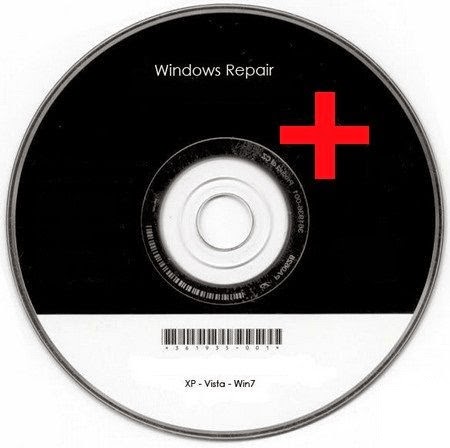
ඉතින් යාලුවනේ මන් අද ඔයාලට කියල දෙන්න යන එක ගැන වැඩි විස්තර කියන්න ඕනේ නැ නේ . මාතෘකාව දැක්කාහම හිතාගන්න පුළුවන්නේ දූෂණය කරගත්තු දේවල් ලස්සනට කිසිම දෙයක් නොවුණ විදියට හදල දෙන තාක්ෂණයක් අද තියෙන්නෙ.උබලා මන් කියන ඒවා වැරදියට වල් විදිහට එහෙම තේරුන් ගන්න එහෙම එපා . .. දූෂිත කිසිම දෙයක් අද කිසිම දෙයක් සොයාගන්න එක ගලෙන් පට්ටයක් ගන්නව වගේ වැඩක් ..එහෙව් එකේ කොම්පියුටරේ දූෂිතයි . .දූෂණය වෙලා. . .වින්ඩෝස් වලට කෙලවෙලා කියල අහන එකත් ජිල්මාට්ස් මල්ලිට ප්රශ්ණයක් වෙලා තිබුණ කාලයක් තිබුණ. . කොම්පියුටර් එකේ හැම අස්සකම රිංගන ජිල්මාට්ස්ට මේවගේ දෙයක් අහන එකත් අවනම්බුයි... ඉතින් ජිල්මාට්ස් දූෂණය වුණ කොම්පියුටරේ වින්ඩෝස් ලස්සනට හදන්න ක්රමයක් ඉල්ලල බිල් ගේට්ස් මාමට කතා කලා.. කොහෙද ඇපොයින්මන්ට්ස් ඕනලු නෙ.. මොන මගුලක්ද...? අපේ මහින්ද මාමටත් වඩා ලොක්කෙක්ලු නේ..කරන්න දෙයක් නැ මටම මේ ගැන හොයාගන්න වෙනවා . . ඉතින් මේ ජිල්මාර්ට්ස් මල්ලි වැඩ කැල්ලක් දාල හොයාගත්ත අම්මෝ දවසක් විතර ගියා කියහන්කෝ දැන් ඉතින් උබලත් ඉගෙන ගනින්ලා බන් . . එහෙනම් අපි වැඩේට බහිමු බන් . .
උඹලගෙ OS එකට අදාළ Windows XP, Widows7, Vista CD/DVD එක ඩ්රයිව් එකට දාගනින්කෝ .. දැන් මේ පාරෙන් පලයන්කෝ බන් කට දිහා බලන් ඉන්නේ නැතුව Start > Run > type "CMD"දැන් කළු රෙද්දේ ඒ කියන්නේ cmd එකේ මේක type කරහන්කෝ "sfc /scannow" enterබලහන්කො බන් ඔය හදන් එන්නෙ අපූරුවට. . ලස්සනට.... බලන්න වින්ඩෝස් මොනවත්ම නොවුණ වගේ රගේ දාන හැටි. . . මගෙ කට අවුස්ස ගන්න එපා.. ජිල්මාට්ස් මල්ලි හින්ද බේරුණා කියල හිතාගනින්. .. නැත්නම් දාපන්කො ආයෙමත් ෆෝමැට් එකක්...හාඩ් එකත් ෆෝමැට් කරන්න පුලුවන් වෙන්නෙත් වාර 125ක් විතරයි දැනට කීපාරක් ෆෝමැට් කලාද...?ඇති යන්තම් බේරුණා. . එහෙනම් දැන් ගොඩ තමා . .
එහෙනම් මන් යනවා ඔයාලට ජය වේවා!!

Friday, August 15, 2014
ඕනම Software එකක Serial Keys & Crack එක හොයා ගන්න නියම ක්රමයක් [Finding Serial Key Of Any Software Using Simple Google Trick]
![serial-key-with-google-trick[1]](https://blogger.googleusercontent.com/img/b/R29vZ2xl/AVvXsEjqW_wfSnUZO4gGCW6dtcDap5UPYFMVwN8liBBl9mCuadTypKaLa24A7Z1EOejhVdp0ounaKm0Sib43CBY-xV-d1GzfWNdmiUQ_TNIvP9dB15-oGhKhck0sRJX38RMfOGTevNz7U9rDeBg8/s1600-h/serial-key-with-google-trick113.jpg "serial-key-with-google-trick[1]")
මුලින්ම ඔයාල හැමෝටම සුබ දවසක් කියලම වැඩේ පටන් ගමු. අද කියා දෙන්න යන්නේ අපි කාටත් පොදුවේ ගත් කල අවශ්ය වන දෙයක්. Software එකක Serial Key එක හොයා ගන්න පුදුම කටිටක් කන්න වෙනවා සමහර වේලාවන් වලදි. ඒ නිසා මම අද ඔයාලට කියා දෙන්න යන්නේ Seriya Key එක හොයා ගන්න පුලුවන් පහසු ක්රමයක්.වැඩි කතාවක් අව්ය නෑ අපි වැඩේට බහිමු.
ලොකු දෙයක් කරන්න නෑ. Serial Key එක හොයා ගන්න අවශ්ය මෘදුකාංගයේ නමට අගින් 94FBR කියලාType කරලා Enter කරන්න. පහත තියෙනවා කරන විදියහ.
- Software Name කියන තැනට Replace කරන්න ඔයාට serial key එක හොයා ගන්න අවශ්ය Software එකේ නම. පහල තියෙන උදාහරණය බලන්න.
- Eg:මට අවශ්යයි Office2010 මෘදුකාංගයේ Serial Key එක හොයා ගන්න. එනෙමි මම මෙන්න මේ විදිහට Type කරනවා Google එකේ. Office2010 94fbr
03. දැන් Enter යතුර Press කරන්න. එවිට දැක ගන්න පුලුවන් පහල වෙයි ඔයා හොයපු Software එකට අදාළ Seriyal Key එක හෝ Crack Fail එක. මේ තියෙන්නේ මම හොයපු මෘදුකාංගයේ Serial Key එක.

වැඩේ හොදයි නම් යාලුවන්ට දැනගන්නත් එක්ක Share පාරක් දාගෙනම යන්න. Comment එකකුත් තිබුනොතින් නම්, හිතාහාද RLමල්ලිට ලොකු සතුටක් යාලුවා....
අපේ Fan Page එකට Like එකකුත් එකතු කරන්න. එවිට අලුත් Post එකක් දාපු ගමන්ම ඔයාගේ TimeLine එකේ දිස් වේවි. හදවතින්ම ස්තුතිය මගේ Post එක කියවපු ඔයාට !
+Post එක ලිවවේ හිතහොද RLමල්ලි
Subscribe to:
Posts (Atom)